
Documentation/Templates
Template library
Predefined and saved templates, and how to manage them.
Templates are reusable email designs. Build one once and use it for any number of campaigns and flows.
The library
Open Template Builder → Email Template from the sidebar. The library has two tabs:
| Tab | What's in it |
|---|---|
| Email Library | Ready-made designs from NevTan — a starting point you can copy and adapt |
| Email Saved | Templates you've created and saved yourself |
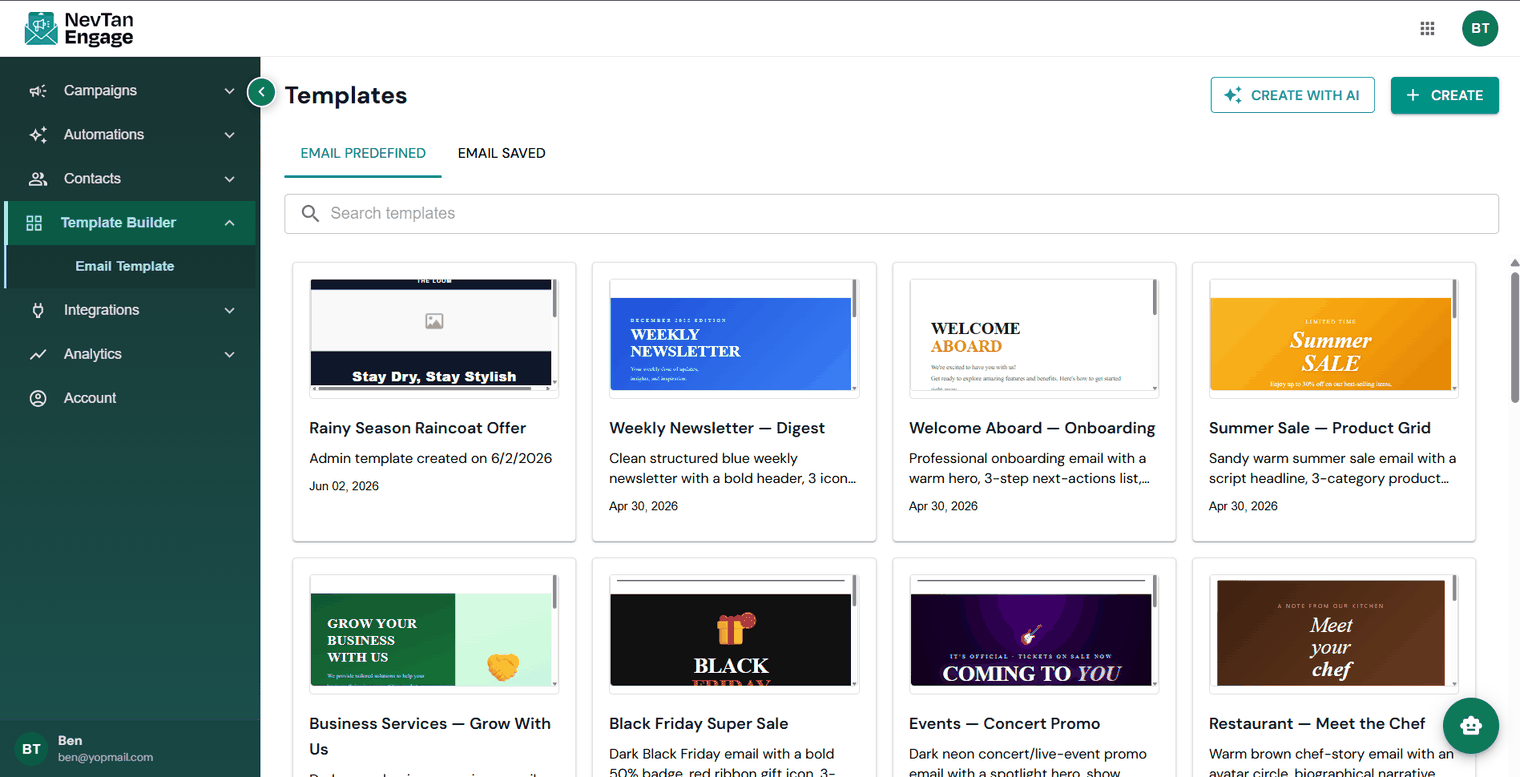
Predefined and saved templates
Each template shows a miniature preview so you can recognise it at a glance, and the search box filters by name.
Creating a template
Two buttons sit at the top right:
Create with AI
Describe the email you want and let AI build it.
Create
Start from a blank canvas in the drag-and-drop editor.
Using a template
- In a campaign — pick it at the message step. See Create & send a campaign.
- In a flow — attach it to any email step. See Custom flows.
- Copy a predefined one — open it, edit it, and save your own version into Email Saved.
Managing your templates
- Edit — click a saved template to open it and change it. Edits may require re-approval.
- Delete — the delete icon appears on cards in the Email Saved tab only; you'll be asked to confirm.
Templates go through an approval step before they can be used for real sends — see Template approval.