
Documentation/Contacts
Importing contacts
Bring your audience in from a CSV file.
The fastest way to fill a list is a CSV import. Engage handles large files in the background and tells you exactly which rows failed.
Prepare your file
Every contact must include an email address or a phone number, plus any other fields you want to store — first name, last name, organization, and so on.
Not sure of the format? Download the sample CSV from the upload dialog and match its columns.
Run the import
Open the list
Go to Contacts → Lists and open the list you want to import into.
Go to Imports → Import Contacts
The Upload contacts dialog opens.
Upload your CSV
Drag and drop the file, or click Upload to browse for it.
Map your columns
Match each column in your file to the right contact property — Email, First Name, Last Name, Phone, and so on.
Confirm
The import starts. Large files process in the background, so you can carry on working.
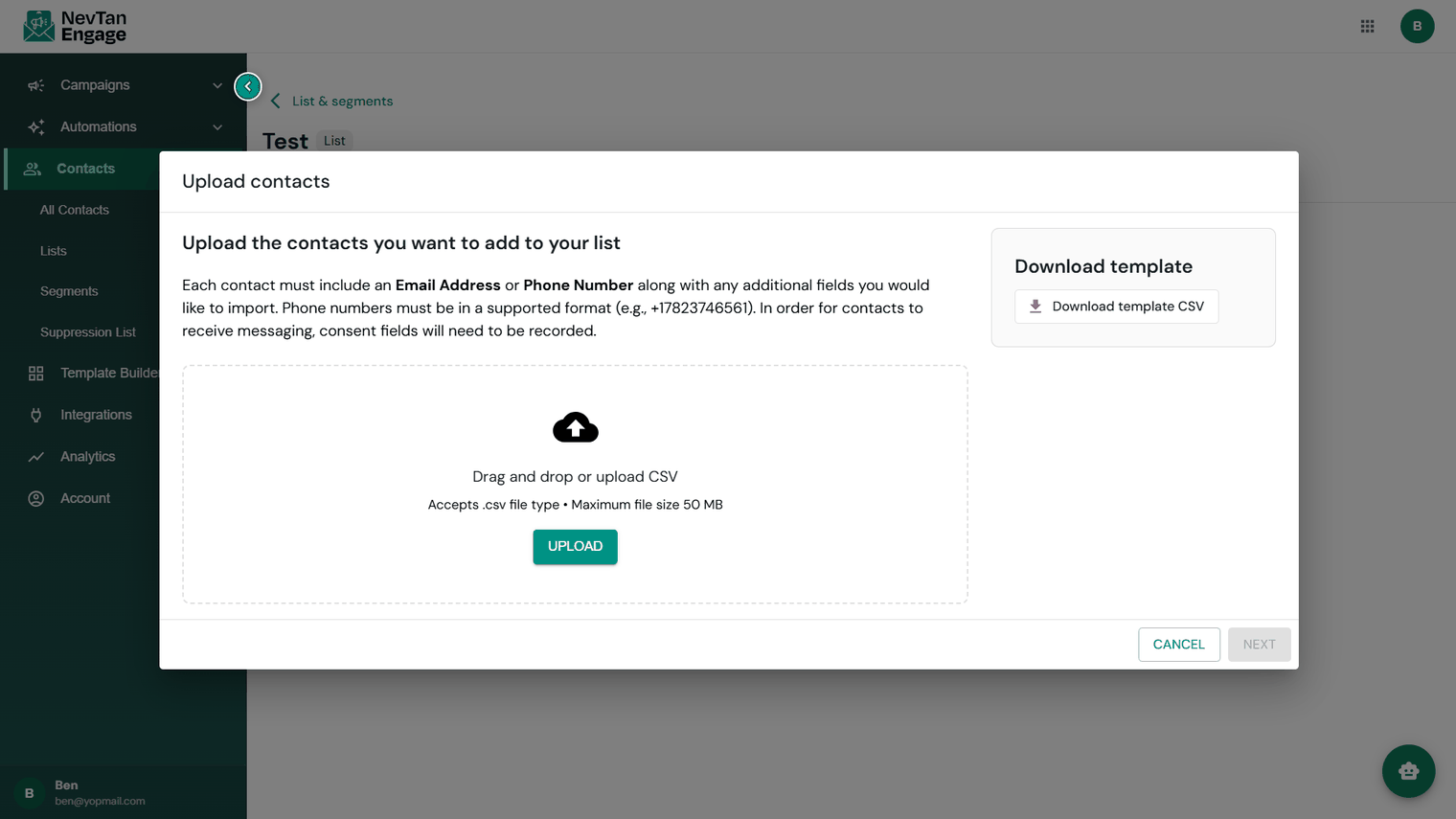
Step 1 — upload your CSV
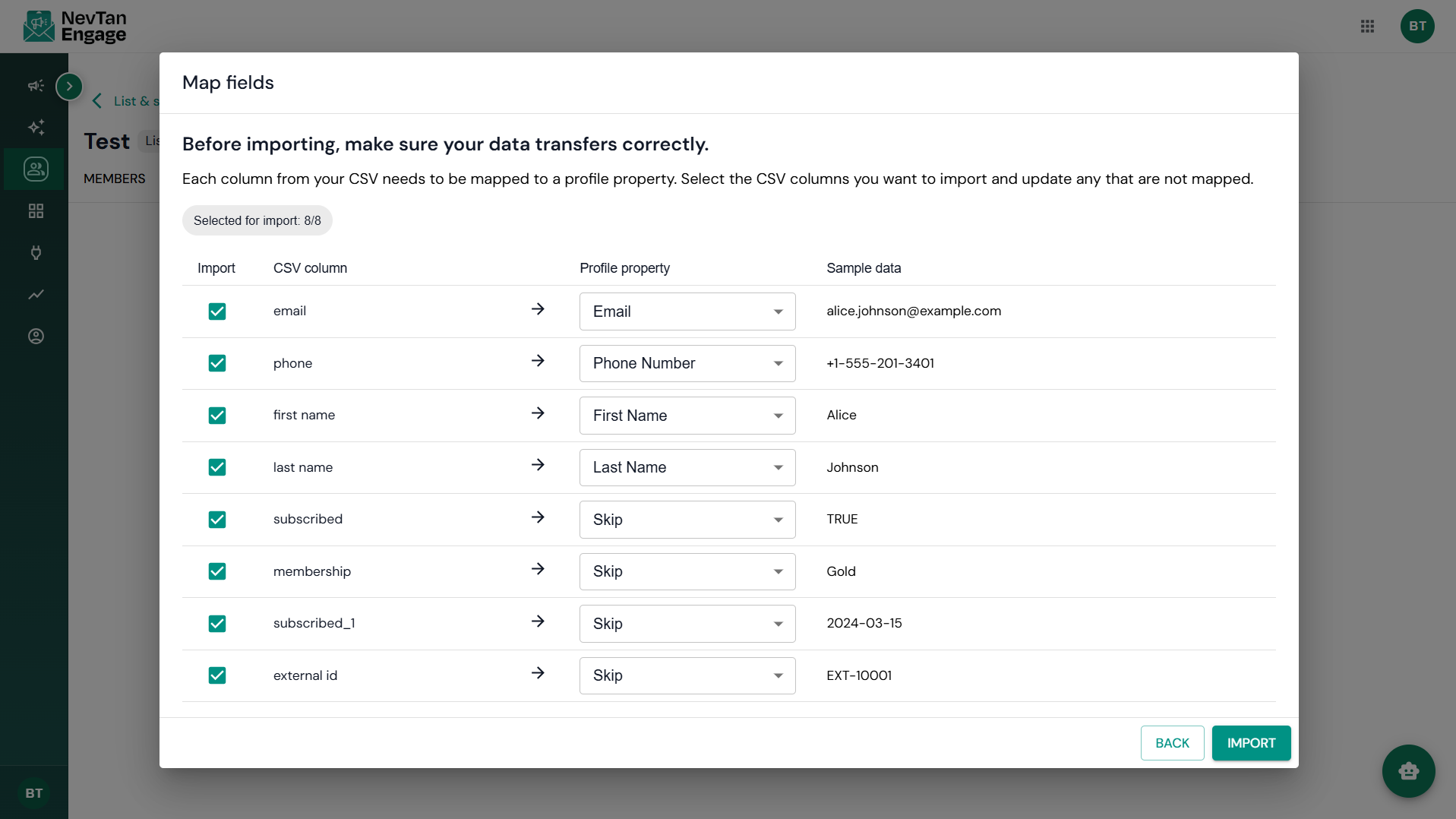
Step 2 — map your columns
Import statuses
| Status | Meaning |
|---|---|
| Processing | Still importing |
| Completed | Every row imported successfully |
| Completed with errors | Some rows failed — click Download CSV to get just the failed rows, fix them, and re-upload |
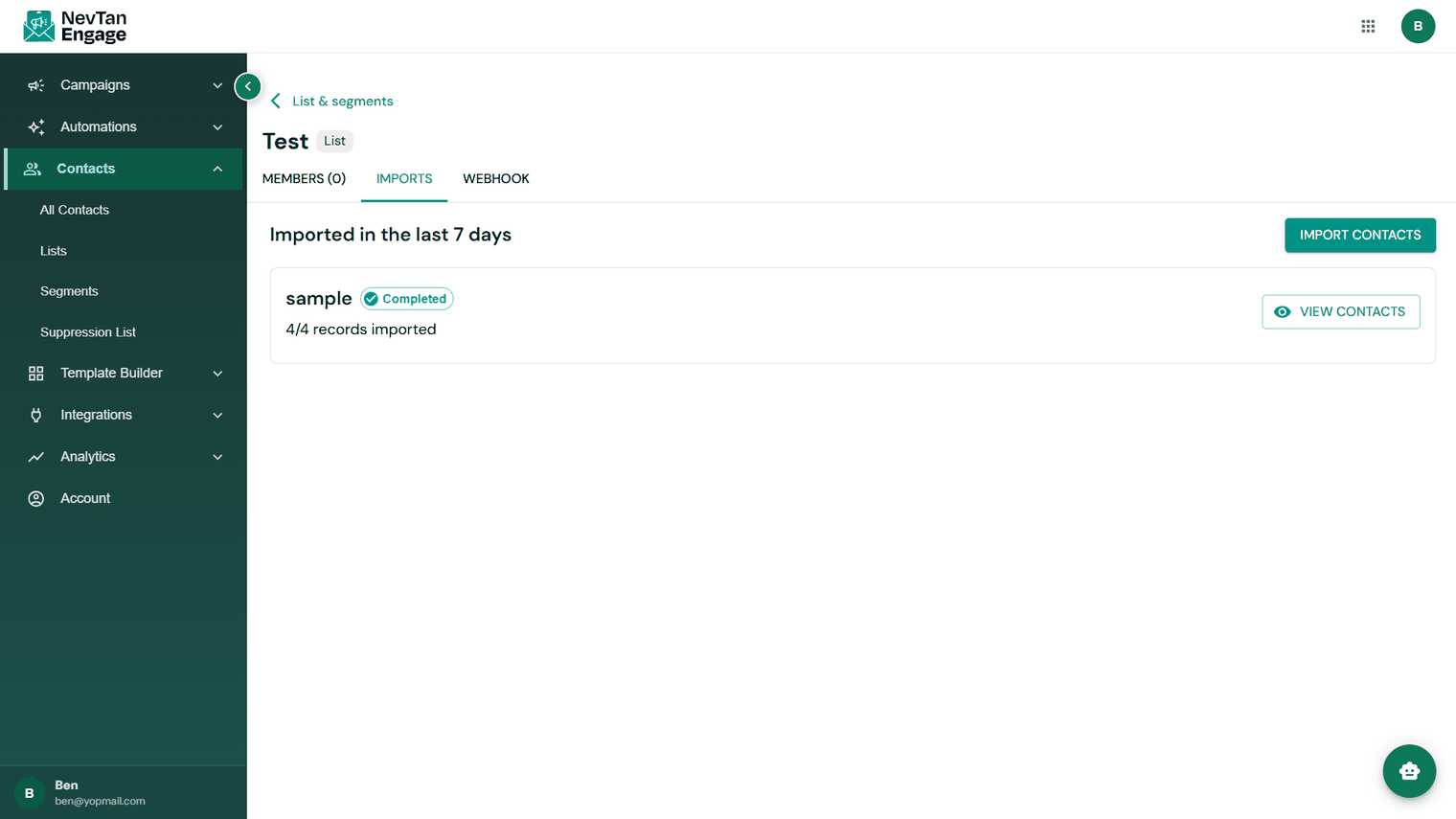
Import history and statuses
The Imports tab keeps the full history, so you can always go back and check what happened.
Before you import
Only import people who gave you permission to contact them. Uploading a purchased or scraped list will generate spam complaints, damage your sender reputation, and can get your account suspended.
- Clean obvious junk (typos, test rows, duplicates) before uploading.
- Remove anyone who previously unsubscribed — importing them again doesn't re-subscribe them, but it wastes your credits.
- Import in one go rather than re-uploading the same file repeatedly.