
Documentation/Getting started
Your dashboard & navigation
The home screen, the sidebar, and where everything lives.
After signing in you land on Home — your starting point and a shortcut to the things worth doing first.
The home dashboard
- Welcome banner — a short intro to the platform.
- Domain setup card — a shortcut to configure DMARC, DKIM and SPF. It reads Setup Custom Domain for Email Delivery until you add a domain, then changes to Almost there — verify your domain and names the one still waiting. The button goes to the same place either way, and the card disappears once a domain is verified.
- Explore Features — cards linking to Email Campaigns, Analytics, Contacts, Templates, Lists, Audience Segments, Built-in Flows, and Custom Flows.
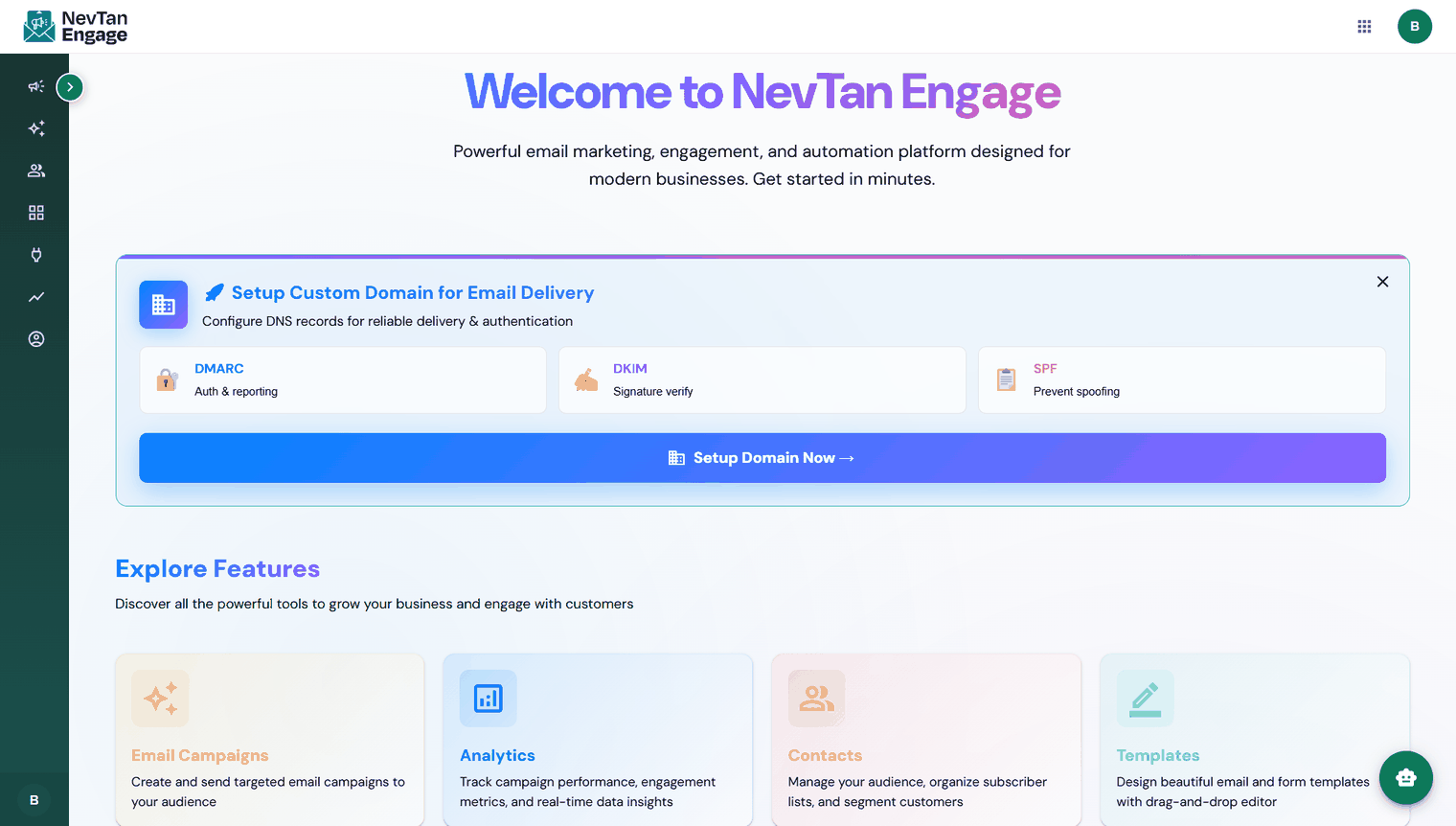
The home dashboard
Verifying a sending domain is the single biggest thing you can do for deliverability. If you do one thing before your first campaign, do that — see Custom sending domains.
The sidebar
Everything in Engage hangs off the left sidebar, grouped into collapsible sections:
| Menu | Contains |
|---|---|
| Campaigns | Email Campaigns |
| Automations | Built-in Flows · Custom Flows |
| Contacts | All Contacts · Lists · Segments · Suppression List |
| Template Builder | Email Template |
| Integrations | Webhooks |
| Analytics | Campaign Reports · Automation Reports · Contact Growth |
| Account | Profile, domains, subscription, billing, invoices, team |
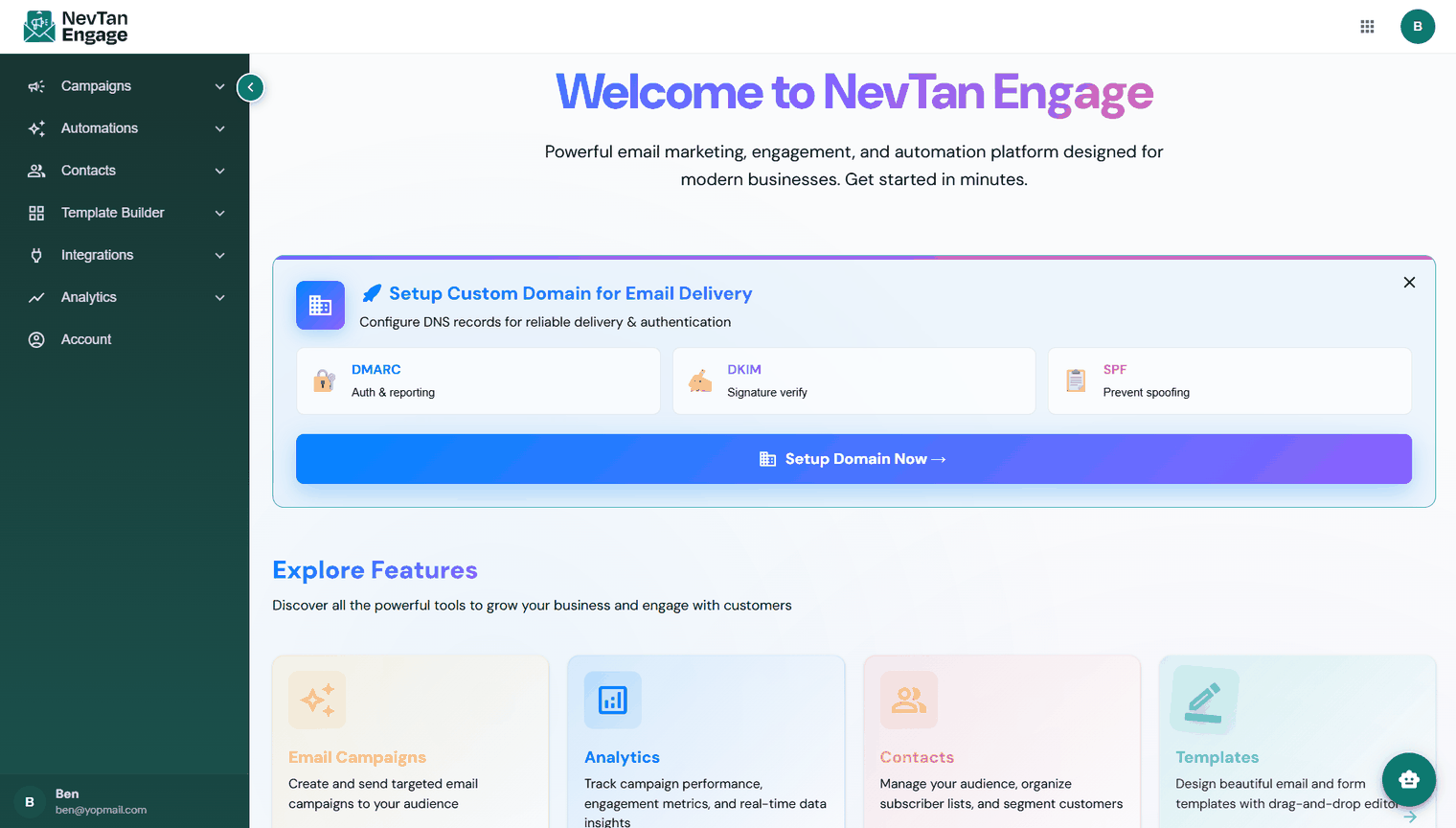
The full sidebar
You can collapse the sidebar to give your content more room using the collapse control at its edge.
Locked menu items
If a feature isn't in your plan you'll still see it in the sidebar, but opening it shows the page blurred behind an upgrade panel naming the tier you need. See Plans & pricing.
The help assistant
The round button in the bottom-right corner opens an in-app assistant. It's context-aware — it suggests things relevant to the page you're on. Open it on Template Builder, for example, and it offers *Design an email template*, *Reuse a template in a campaign*, and *Get a template approved*.
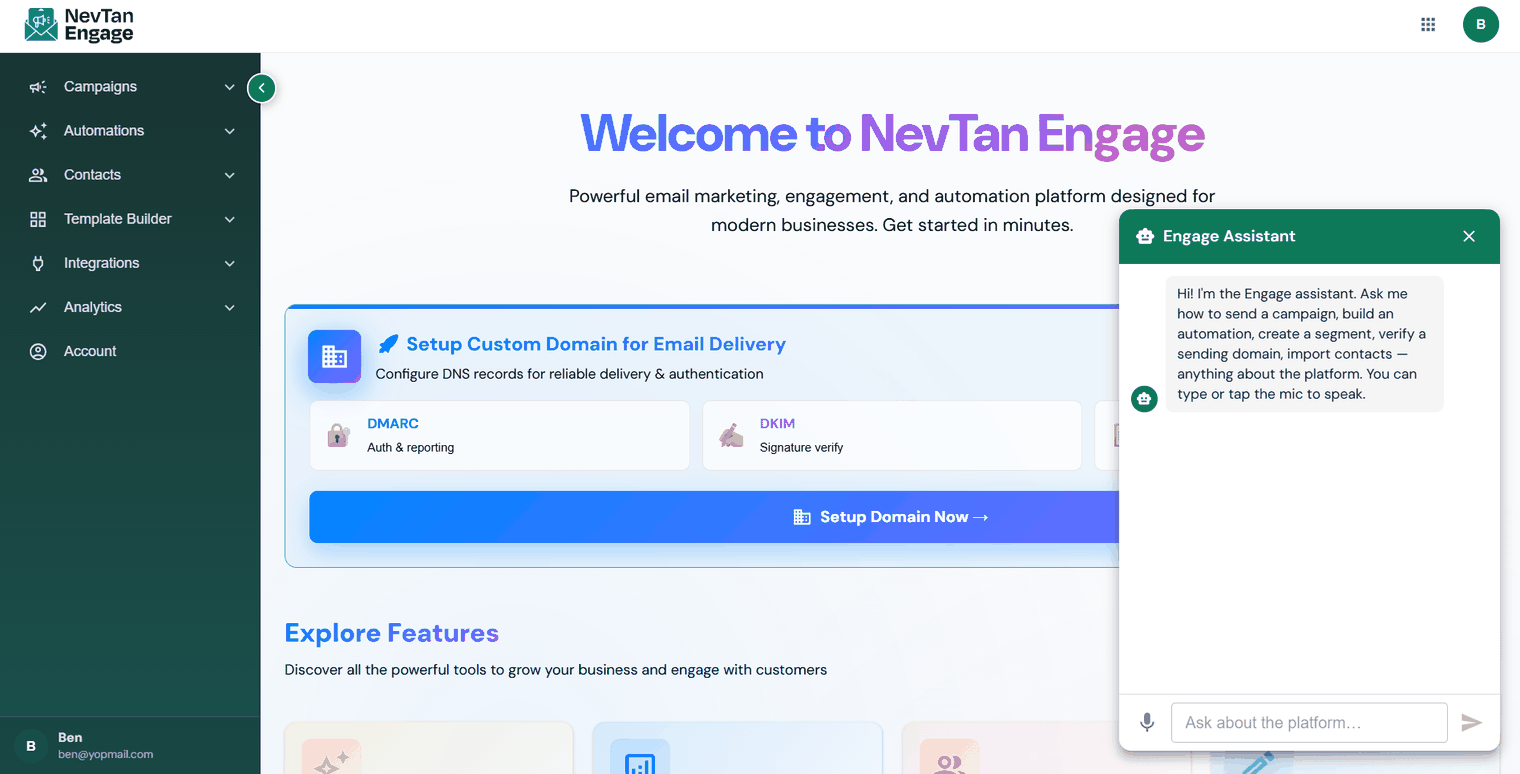
The assistant suggests actions for the page you're on
If you're not sure how to do something on the screen in front of you, open the assistant before going looking through the docs — it's usually the fastest route.
The top bar
- NevTan Apps — a launcher for switching between NevTan products.
- User menu — your profile, account settings, and sign out.