Documentation/Templates
The template editor
The drag-and-drop builder — blocks, styling, and previews.
The editor is fully visual. You never need to write HTML, though you can if you want to.
Content blocks
Drag blocks from the panel onto the canvas:
| Block | Use it for |
|---|---|
| Text | Headings and body copy |
| Image | Logos, product shots, banners |
| Button | Your call to action |
| Divider | Visual separation between sections |
| Spacer | Controlling vertical whitespace |
| Social | Links to your social profiles |
| Video | A clickable video thumbnail |
| HTML | Custom markup, if you need it |
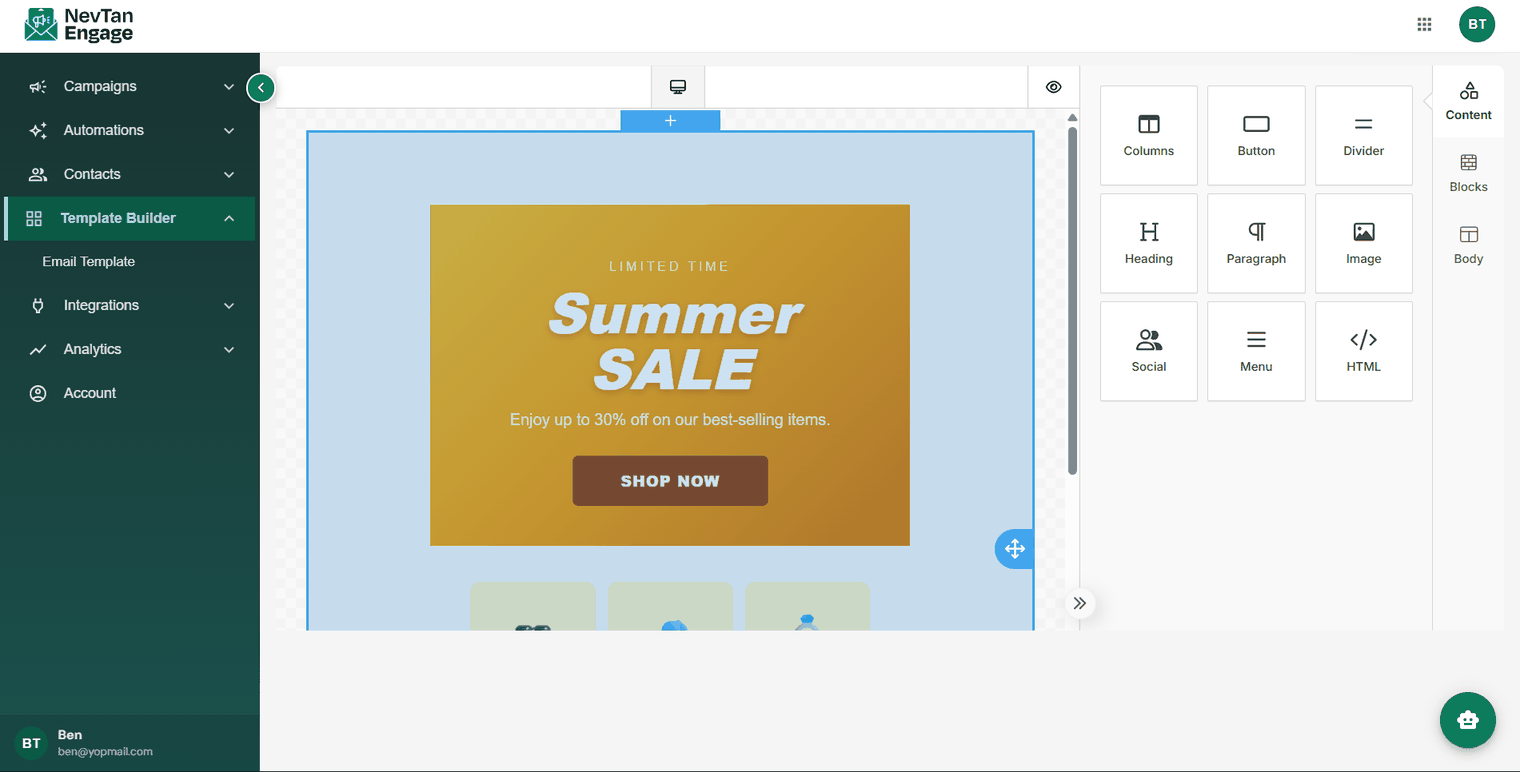
Blocks, canvas, and settings
Editing
- Click any block to open its settings — text, font, size, colour, padding, alignment, and link URL.
- Drag blocks to reorder them.
- Duplicate or delete with the block controls.
Overall design
Set the email background colour, content width, and default fonts so the whole template stays consistent.
Personalization
Insert merge tags to pull in contact properties — first name, organization, and so on — so each recipient gets a message addressed to them rather than to everyone.
Preview before you save
Check both the desktop and mobile views. Most people read email on a phone, and a layout that looks balanced on a wide screen often falls apart on a narrow one.

The mobile view
Design tips
- Design mobile-first. Single-column layouts and large tap targets work best.
- One clear call to action. Competing buttons reduce clicks.
- Don't rely on images alone. Many clients block images by default — keep key messaging in text and always set alt text.
- Keep a consistent brand kit — the same colours, fonts, header, and footer across templates.
- Include an unsubscribe link. It's legally required and protects your reputation.