
Documentation/Templates
Create with AI
Generate a design from a description, then refine it in plain English.
Create with AI builds a complete email design from a plain-English description — then lets you adjust it by describing the change rather than editing blocks by hand.
Generate a template
Click Create with AI
It's at the top right of the Templates page.
Describe what you want
On the Generate tab, describe the email in the box (up to 800 characters).
Click GENERATE TEMPLATE
AI builds the design and loads it into the editor.
Example prompt:
Welcome email for a SaaS app with a blue theme, headline,
short intro paragraph, and a Get Started button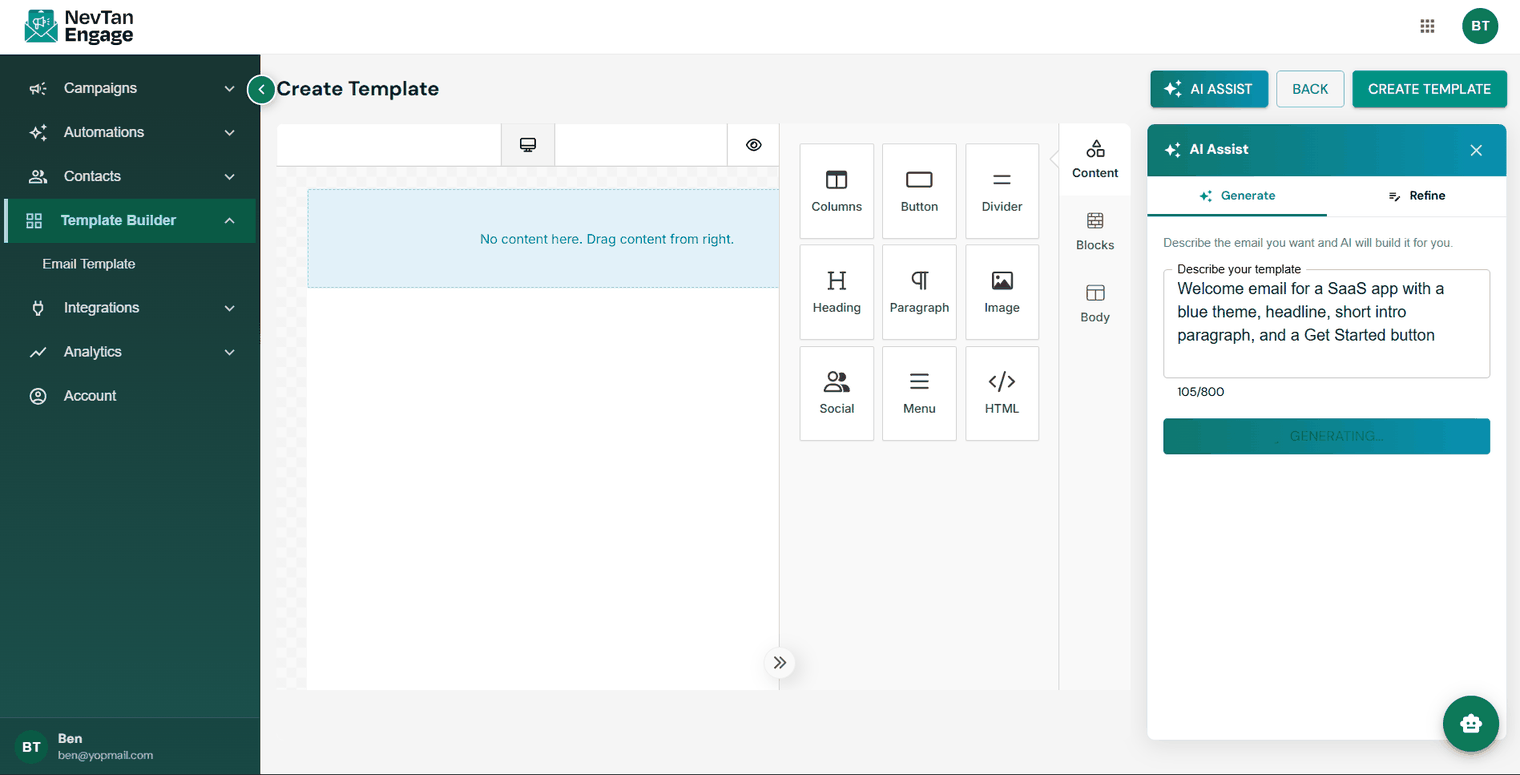
Describe the email you want
Refine it
Not quite right? Switch to the Refine tab and describe what to change. AI reads the current editor content and applies your instructions.
Make the header background dark blue, change the CTA button
to red, and add a footer with contact info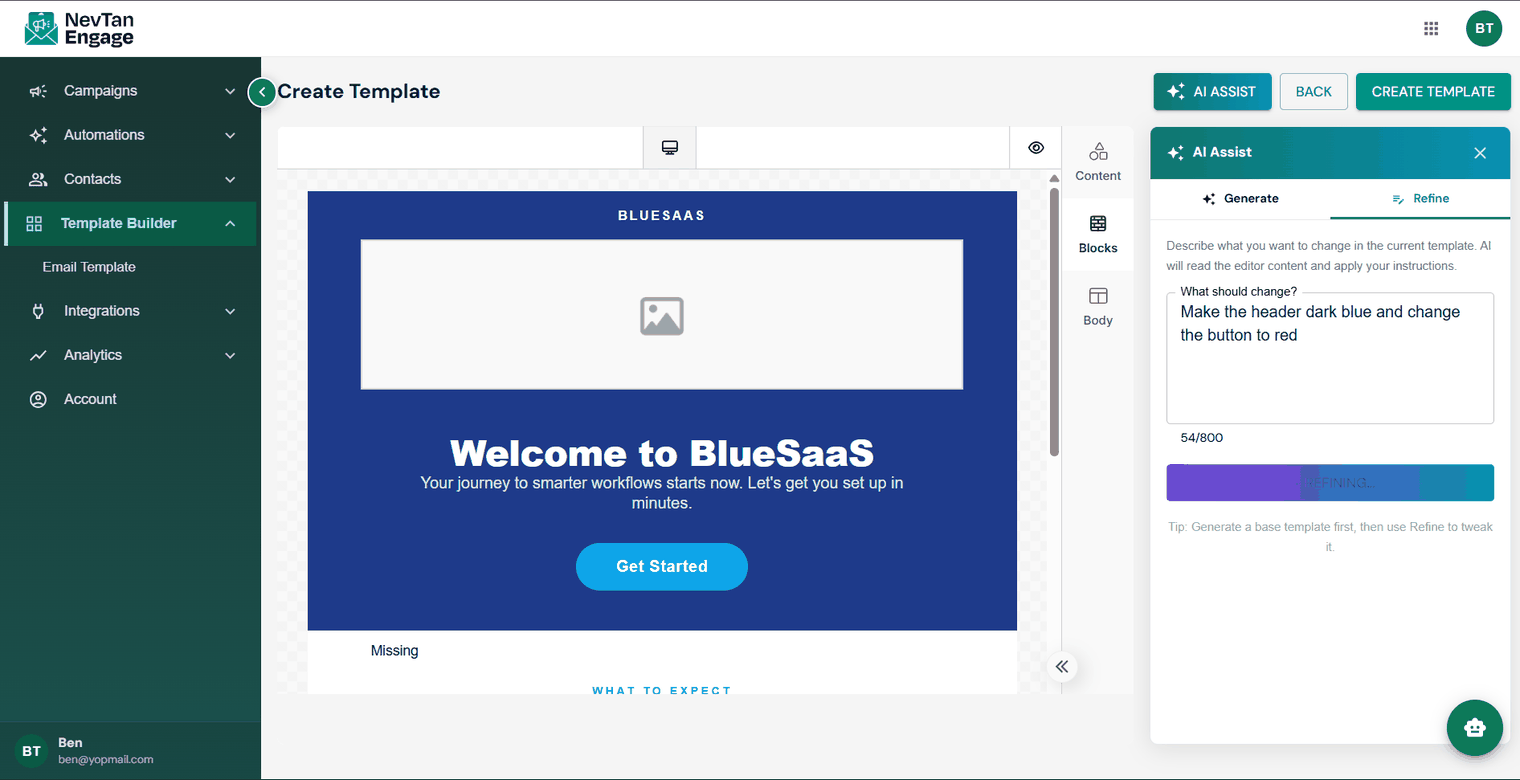
Refine by describing the change
Generate a base template first, then use Refine to tweak it. That works far better than trying to describe everything perfectly in a single prompt.
Writing good prompts
| Include | Example |
|---|---|
| Purpose | "Abandoned cart reminder" |
| Tone | "friendly and informal" / "formal and concise" |
| Brand colours | "dark green and cream" |
| Structure | "headline, two short paragraphs, one button" |
| Call to action | "a Complete your order button" |
Save it
When you're happy, click CREATE TEMPLATE to save it into your library. From there it behaves like any other template — editable, reusable, and subject to approval.
Always read what AI produces before sending it. Check the copy, the links, and the offer — you're accountable for what lands in your customers' inboxes.